
Client reviews — you decide what gets published
October 19, 2026
Screenshots show the Russian-language interface.

Client reviews in Talenza are collected in the same place where booking happens: your page has a “Reviews” tab, and the client card has a “Request a review” button. The client gets a link, leaves a rating and, if they want, attaches photos, and the review appears on your page only after you press “Publish”. Only someone who has had a completed visit can leave a review.
Asking for a review is awkward, and that is only half of it: when a client agrees, she still has to work out where to write. We covered how to ask separately; here we cover what the app now does for you.
A request in one link
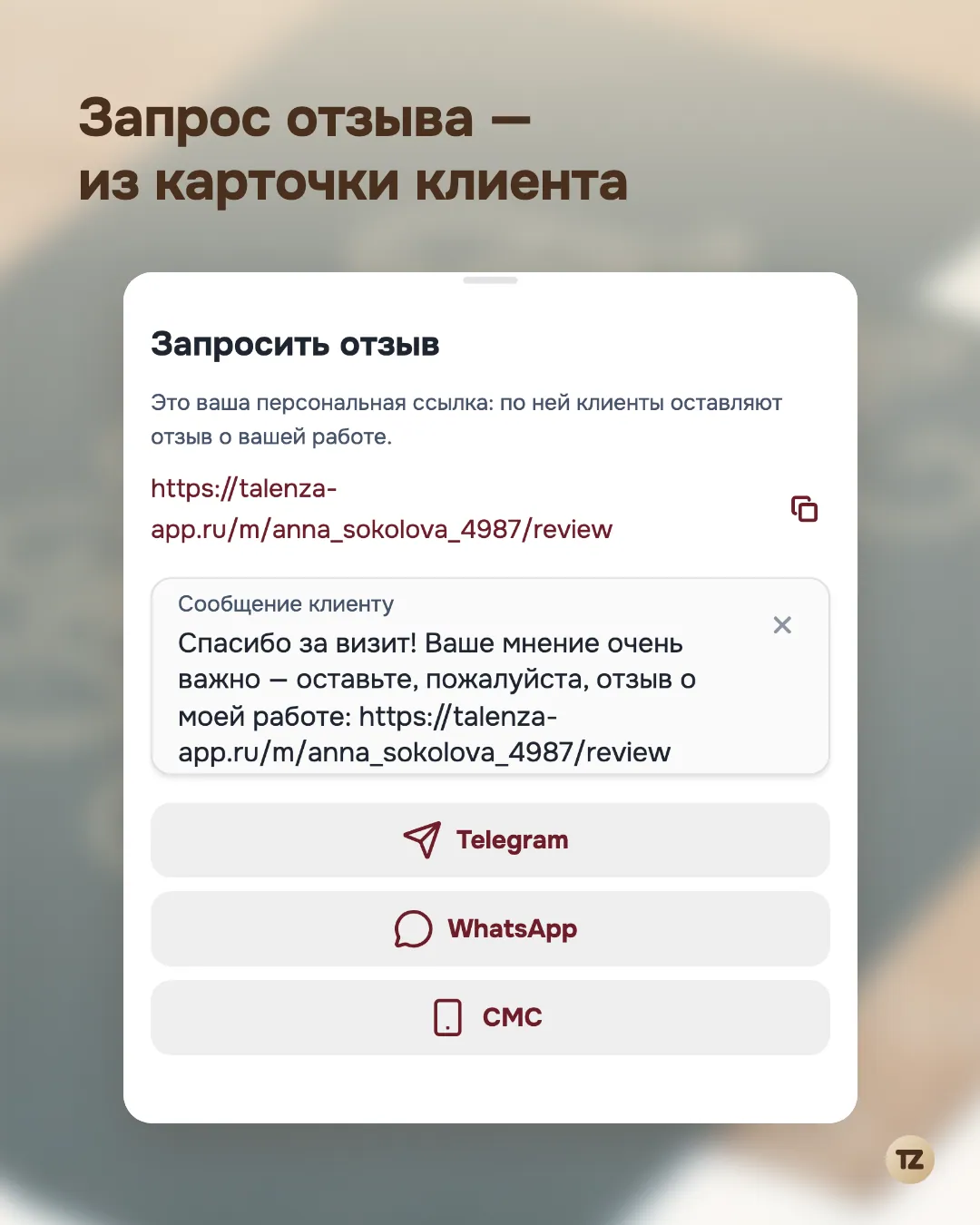
Open the client card and press “Request a review”. The app shows your link to the form and a ready message. You can rewrite the text to suit you: your last edit is remembered and will be there next time. You can send it by Telegram, WhatsApp, SMS or email (if the client has one), or just copy the link.
If the client has no completed visits yet, the app shows a hint instead of the link: a review can be left after at least one confirmed booking that has already taken place.
You send the request yourself. There is no automatic reminder yet, so you choose the moment: for example, after the third visit, when the client already trusts you.
Only someone who has been to you can leave a review
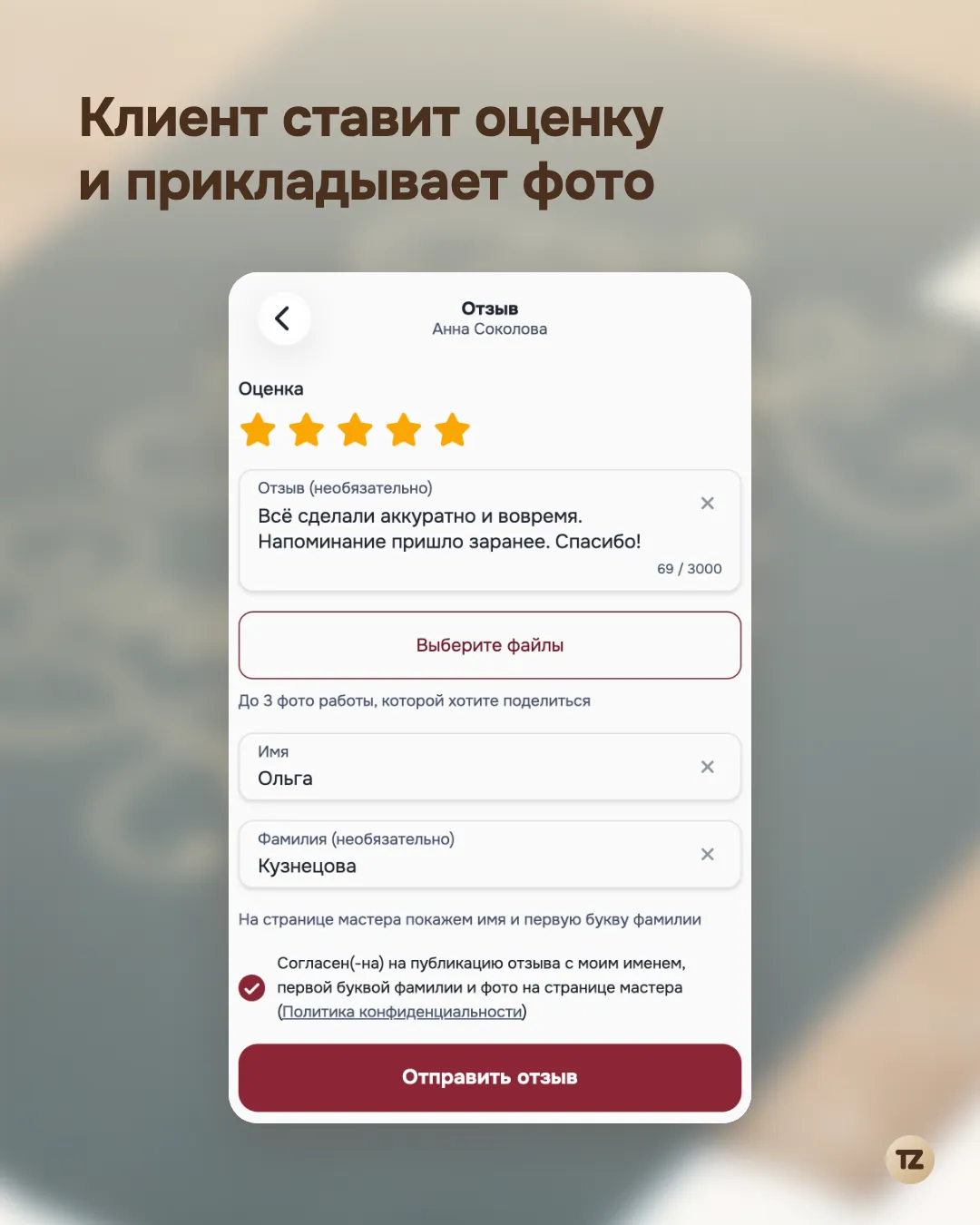
The client opens the link and enters their phone number. If you have a completed, confirmed booking for that number, the form opens. If not, the client sees: “We couldn’t find any visits for this number — check the number”. Participants of group classes count the same way as ordinary clients.
The form has a rating from 1 to 5, text (optional) and up to three photos. The app re-saves photos without hidden data, such as the location tag a phone adds to a picture. A separate checkbox asks for consent to publish the review: it is unchecked by default.
If a client submits a review again, the published one stays on the page until you publish the new one. Before replacing it, the app asks: “Replace the previous review?”.
Only what you’ve published appears on the page
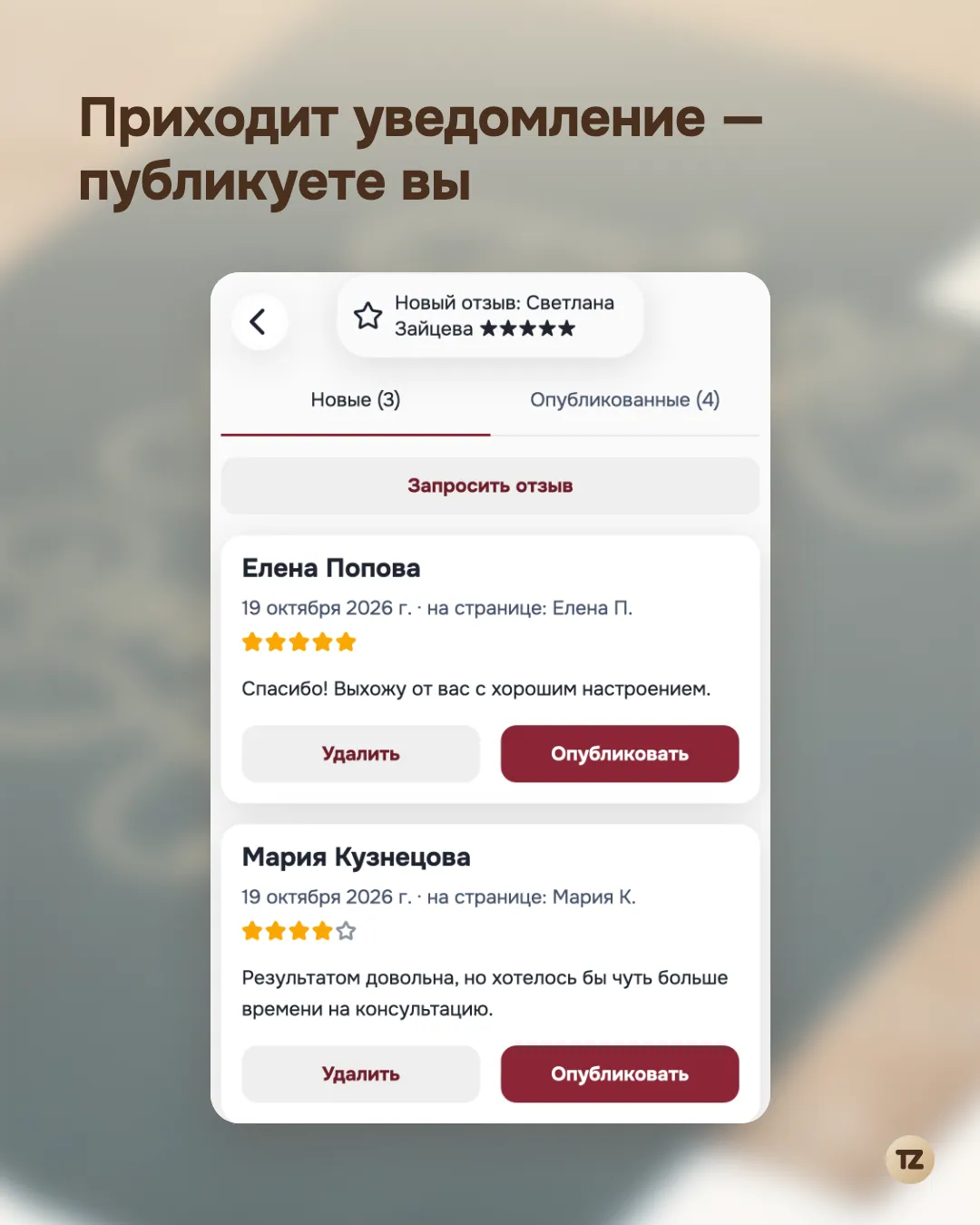
A new review arrives as a notification, and if your dashboard is open it pops up right there. In “Settings”, open “Reviews”: that is where reviews waiting for a decision are. “Publish” puts the review on the “Reviews” tab of your page. “Delete” removes it entirely, and the photos the client uploaded are erased immediately.
The client is signed the way they introduced themselves: “Alena S.” The phone number is not shown. You see the review differently: the name from your contact and the client’s own signature next to it.
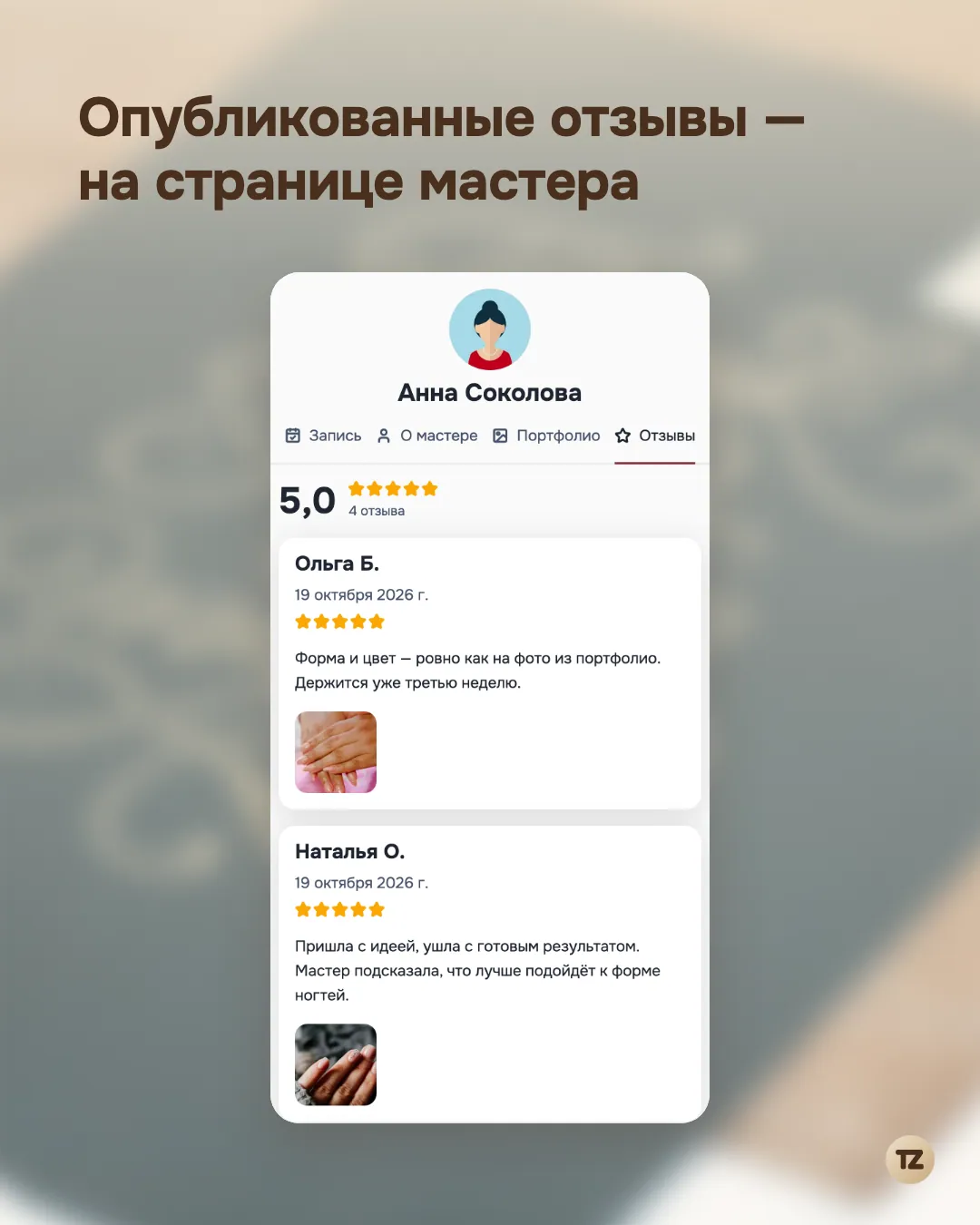
The “Reviews” tab is always on the booking page, even when there are no reviews yet: the client then sees an invitation to say how it went and a “Leave a review” button — so you don’t even have to send the link, it’s enough to show the page. Once reviews appear, they are topped by an average rating and the number of reviews, and photos open full screen. Reviews sit in the same row as the portfolio: first the client looks at the work, then reads what people say about it.
What’s next
The app can’t yet reply to a review or remind you to send a request after a visit. The main thing is done: a review now has a place, and the decision to publish stays with you.
A step-by-step guide with screenshots from the app is in the Russian-language knowledge base: How to collect client reviews.
You can try it in the Talenza app — hi.talenza-app.ru.