
A regular client in one booking, months ahead
October 15, 2026
Screenshots show the Russian-language interface.

To book a regular client every week, you do not need to create the booking again: choose a repeat in the booking window and all bookings for the period appear in your schedule at once. A student comes every Tuesday at 5 p.m., a massage client every two weeks, a manicure every three weeks. You set the rule once, and you see the busy dates before saving.
If you just want to repeat the previous visit on another date, there is the “Repeat” button — we wrote about it separately.
Repeat is set in the booking window
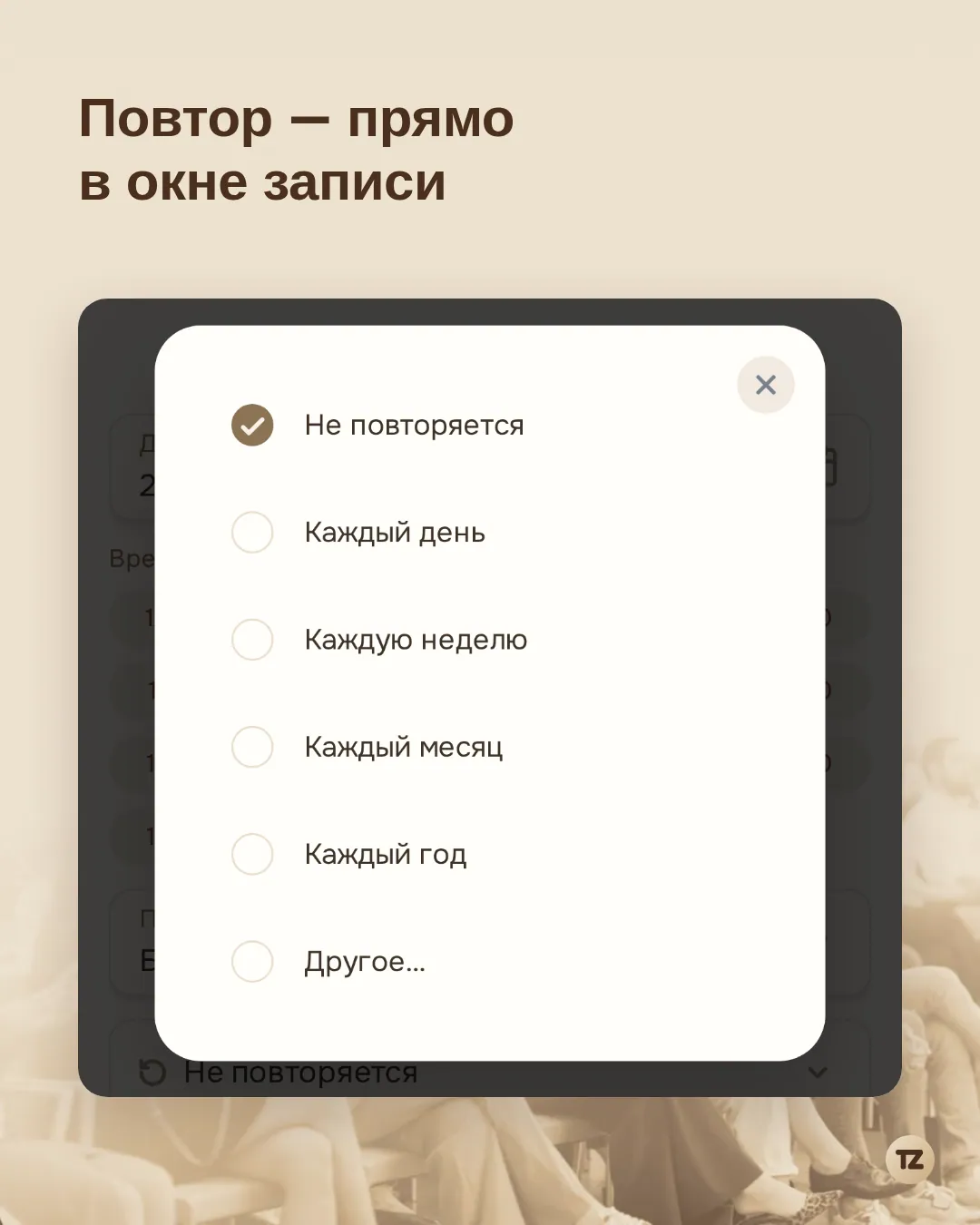
In the window for creating a booking, right after “Break after booking”, there is a new “Does not repeat” field. Tap it and a list opens: “Every day”, “Every week”, “Every month”, “Every year” and “Other…”. The ready-made options create bookings a year ahead from the first one.
You can repeat more than a client booking. A break, such as a lunch on weekdays, is also set once. A group class repeats together with all participants: each of them ends up booked into every class of the series.
Your own rule is in “Other…”
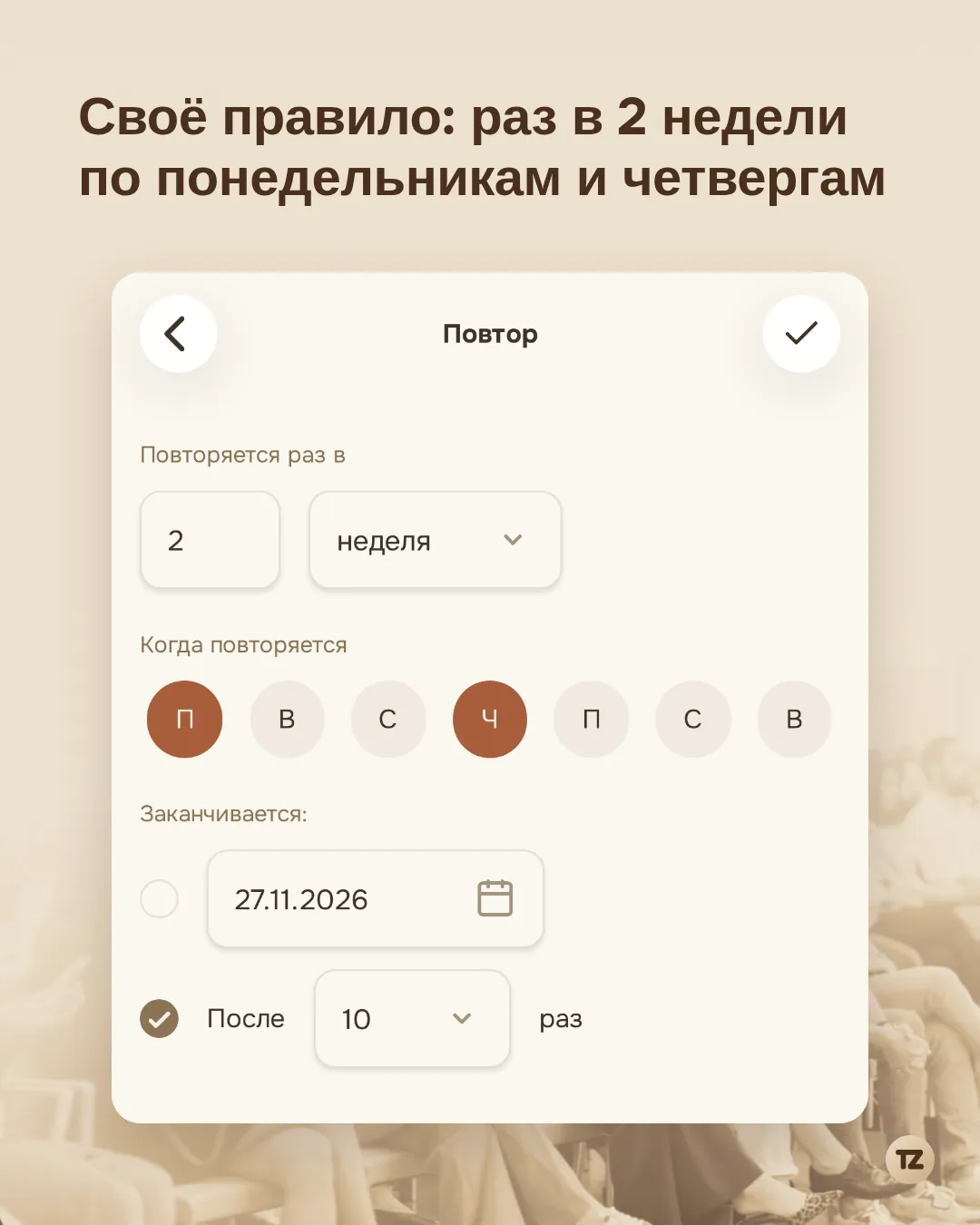
If the ready-made options are not enough, tap “Other…”. Here you set how often to repeat: every so many days, weeks, months or years.
For a week you can pick several days: for example, Monday and Thursday every two weeks. If none of the chosen days matches the day of the booking, the series starts from the nearest chosen one, and the date in the booking window shifts on its own.
For a month there are two ways. You can repeat by date — “every month on the 15th”. If you chose the 31st and the month has 30 days, the booking lands on the last day of the month. Or you can repeat by weekday — “every month on the second Friday”. If the booking falls on the last Friday of the month, the app also offers “on the last Friday”: it stays put even if next month has four Fridays instead of five.
You can end the series with a date or a number of visits — from one to ten. A repeat does not go further than a year ahead.
Busy days are visible before saving
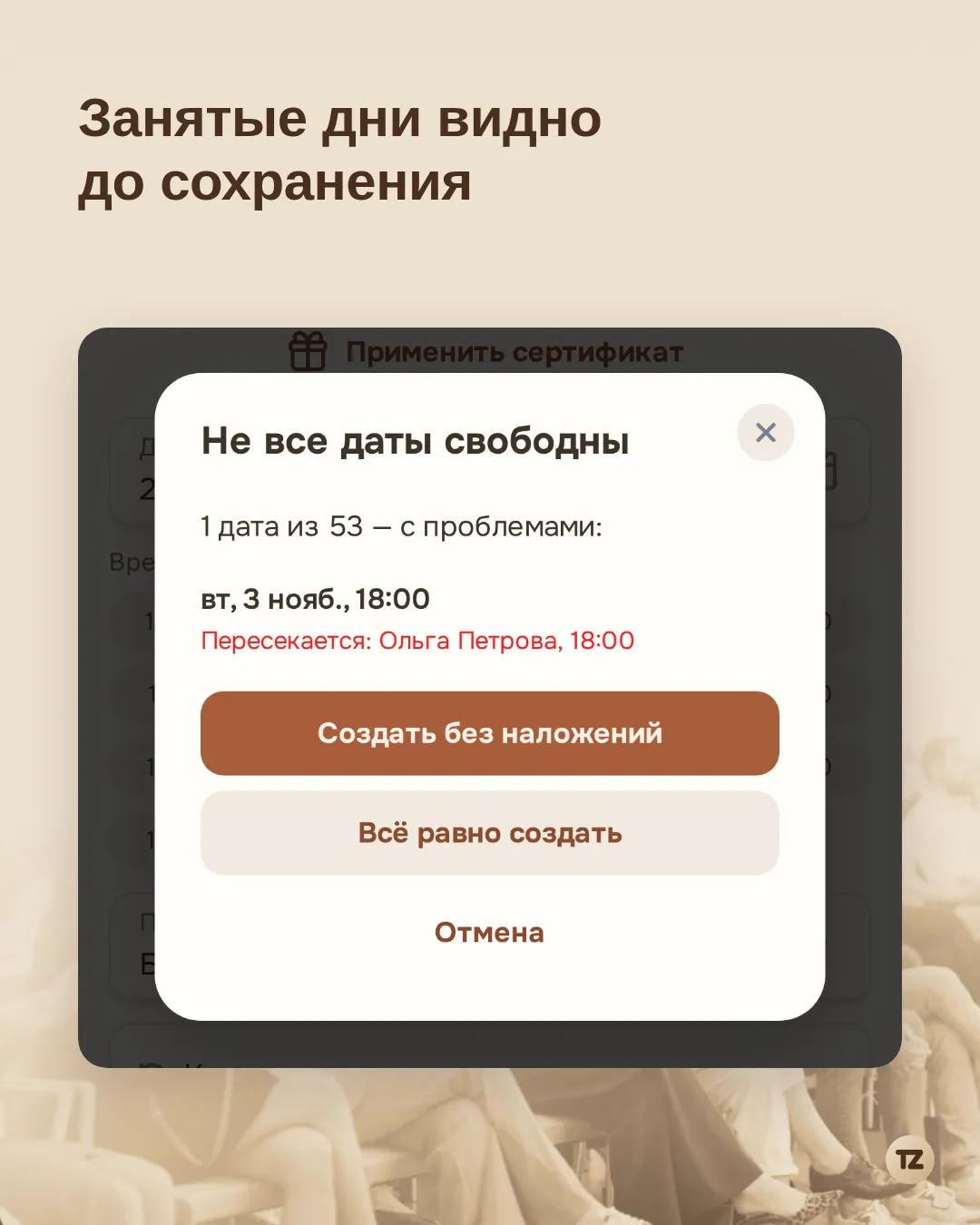
Over a year, your schedule is sure to have days when someone is already booked at that time, a day off, or an hour when you do not work. Talenza checks all dates of the series before saving and shows the problem ones — with the date and the reason, and for an overlap also with the client’s name and the time.
Then it is up to you. “Create without overlaps” skips those dates, and the rest of the bookings appear. “Create anyway” books all dates: useful if you know that this day off will be cancelled. “Cancel” returns you to the booking window to pick another time.
The client will not get a pile of messages
Creating twenty bookings at once is no reason to send the client twenty notifications. The “you are booked” message goes out only for the nearest booking of the series. The client learns about the next ones the usual way — from the reminder before each visit.
Each booking of the series has its own page. If a client cancels a booking from the link in a reminder, only that visit is cancelled and the others stay.
Editing and cancelling: this one or all following
In the schedule, a repeating booking has a repeat icon, and in the booking details next to the time it says how it repeats and until which date.
When you change or cancel such a booking, the app asks: “Only this one” or “This and following”. Moved a student from Tuesday to Wednesday for good — choose “This and following”, and the whole remaining series moves to Wednesdays. If you change the rule itself, for example from “every week” to “every two weeks”, it affects this booking and all following ones — the app warns you about this before saving.
When you cancel several bookings, the client gets a message only about those they already know about: the first booking of the series, the one a reminder was sent for, or the one they already confirmed. Telling them about the cancellation of a visit they never heard of would only confuse them.
For the client in Telegram
If a client uses our Telegram bot, the series takes one line in “My bookings”: the master, the repeat rule and the nearest date. The list does not turn into twenty identical lines, and the client’s other bookings stay visible.
Good to know
Only the master sets a repeat: on the booking page the client picks a single visit, as before. A request that is waiting for your confirmation has no repeat field — accept it first, then make it recurring.
A step-by-step guide with screenshots from the app is in the knowledge base: How to make a recurring booking.
Before New Year it’s best to write to regular clients first: a plan for November and December is in “How to fill your bookings before New Year: a plan for solo pros”.
Summary
A regular client is one booking months ahead, not a weekly routine. You set the rule once, see busy days in advance, and the client gets exactly the messages they need. And a visit booked in advance also guards against the most common reason clients don’t come back: the client simply forgot.
Notes about a regular client, such as how to address them and what they asked for, are easier to keep in their card. How to run a client base that works is in the article “A pro’s client base”.