
Fast the first time — and even faster the second
August 3, 2026
Screenshots show the Russian-language interface.
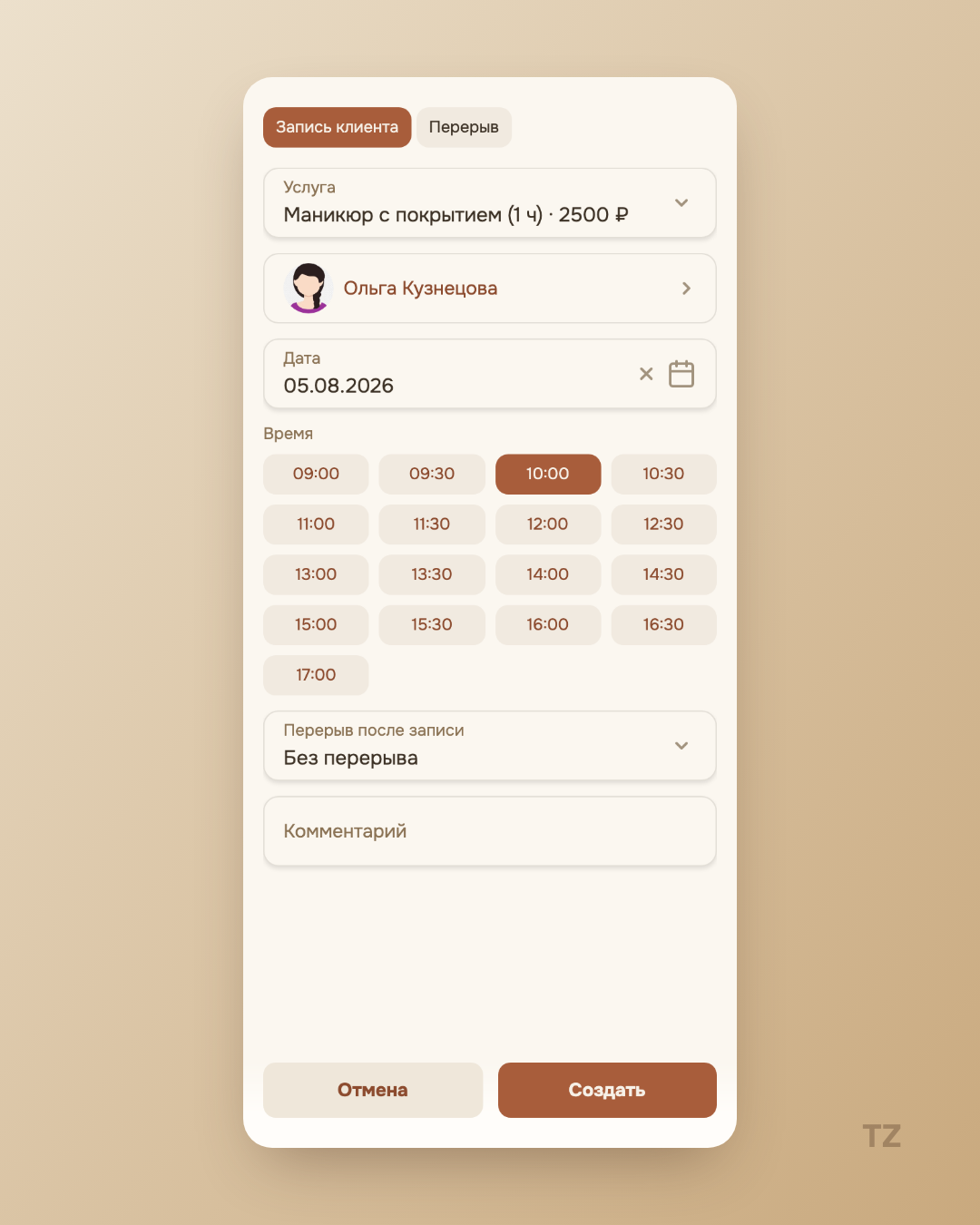
Booking a client doesn’t always mean a form with ten fields and “one second, let me check my notebook for when I’m free.” Talenza has two paths for it — and both are shorter than you’d expect by default.
A new client: a grid of free slots instead of picking by hand
You open “Schedule” and choose a service — a grid of free slots for the chosen day appears right away, taking the break after a booking into account. That break isn’t hard-wired: you can change it right there, without leaving the screen or opening separate settings. Tap the time you need — and the booking is created and immediately confirmed: you don’t have to move it from “pending” to “confirmed” as a separate action, it happens in one step.
A regular client: the “Repeat” button
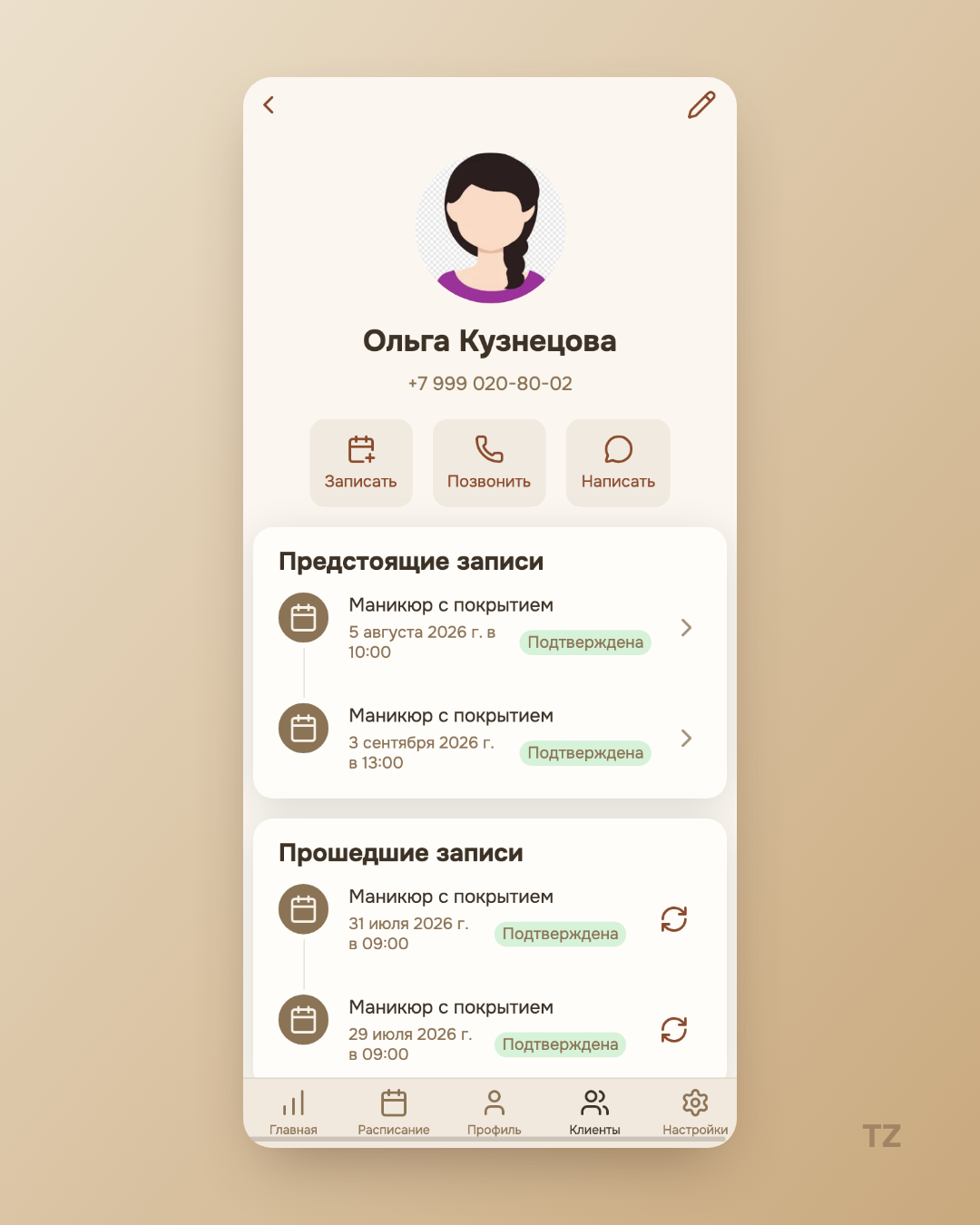
The second path is shorter than the first. In a client’s card, every past booking has a “Repeat” button. Tapping it takes you to the same create-booking window, but with the service, workplace, and the client already filled in — you only need to enter a new date and time. This isn’t a separate “for regulars” form — it’s the same screen as for a new client, just pre-filled with what’s already known.
The date and time are deliberately not filled in along with the other fields: the slot that was free last time is most likely already taken by something else, and pre-filling it would mean offering you a time you’d have to change right away.
The same screen for both cases
There aren’t two parallel mechanics here — there’s one create-booking window that you can reach in two ways: from scratch, through the slot grid, or at a run, through the “Repeat” button on an already known client. You don’t have to remember where each form is or how they differ — the only difference is how much is already filled in by the time the screen opens.