
Waitlist: a client is not lost when there is no time right now
October 11, 2026
Screenshots show the Russian-language interface.

If a client’s time did not match your schedule, you do not have to lose them. Talenza has a waitlist: you add the client, their services, and the time that suits them, and the app watches your schedule on its own and sends a push as soon as a slot opens up for the request. All that is left is to tell the client in two taps or to book them straight into the slot that was found.
”Write me if something frees up”
A familiar story: a client wants to come this week, and the week is full. You promise to write if something frees up, and you honestly intend to. Then someone cancels while you are with another client, and by evening you can no longer remember who asked for what. The client books with another pro, and the slot stays empty.
The waitlist takes the memory out of this story. The app does the remembering.
How to add a client
The waitlist sits on the “Clients” tab, as a row above the list. Press “Add request” and fill in:
- the client, from your contacts or a new one;
- the services: the duration is calculated for you, but you can adjust it;
- the waiting period: from which date to which date the client is available, up to three months;
- the time of day: all day, morning, daytime, or evening;
- notes, if there is something to remember.
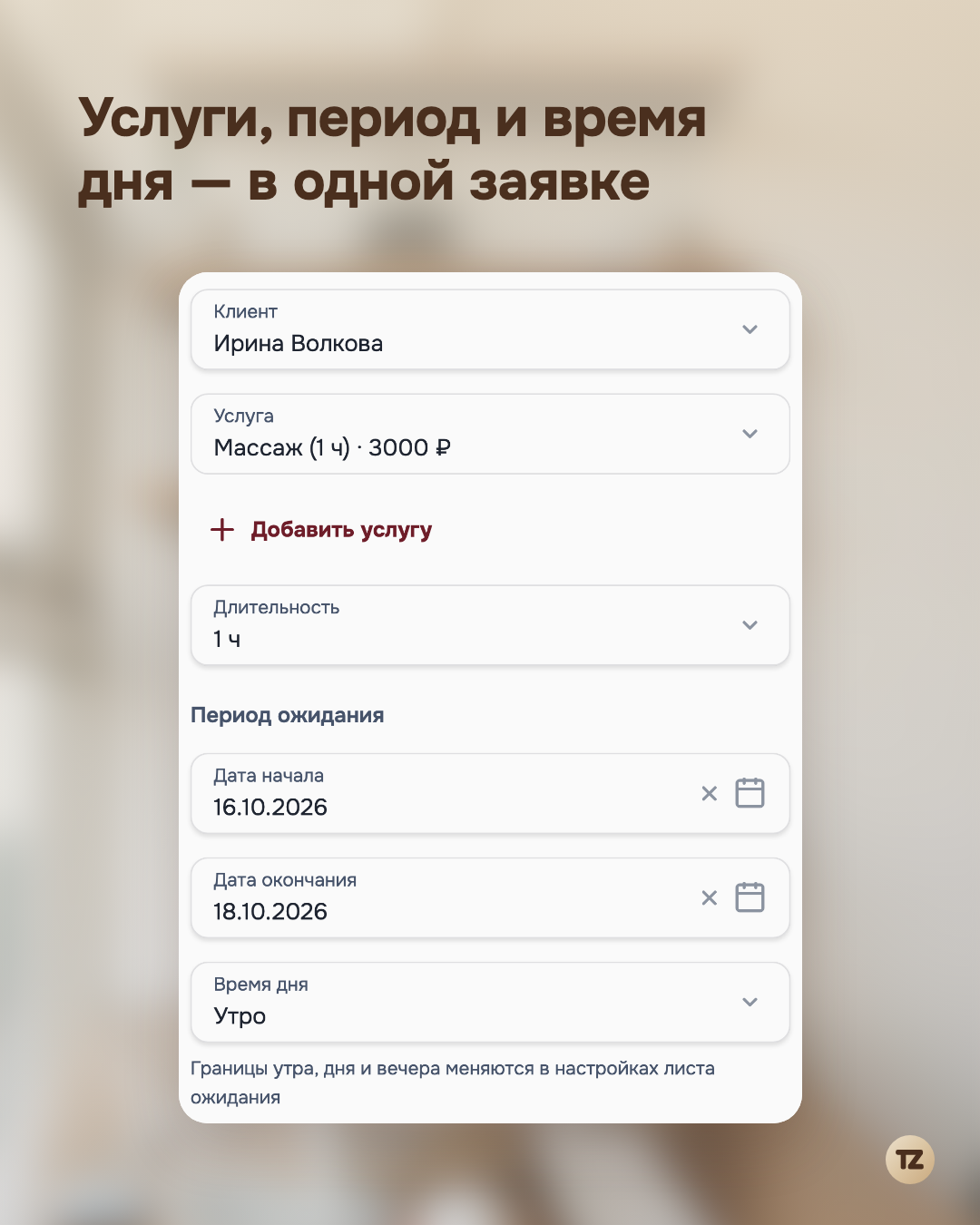
It also works the other way around: a client is already booked but asks to move earlier “when something frees up”. For this, the booking card has an “Add to waitlist” button. The booking is cancelled, and a request is created with the same client and the same services.
The app watches your schedule
After that, you do not need to do anything. As soon as something changes in your schedule, such as a client cancelling, you shifting working hours, or removing a break or a day off, the app checks the list again. If free time is found for a request, a push arrives: “Irina Volkova: free on October 16, 10:00–12:00.” If time is found for several clients at once, you get one push for all of them.
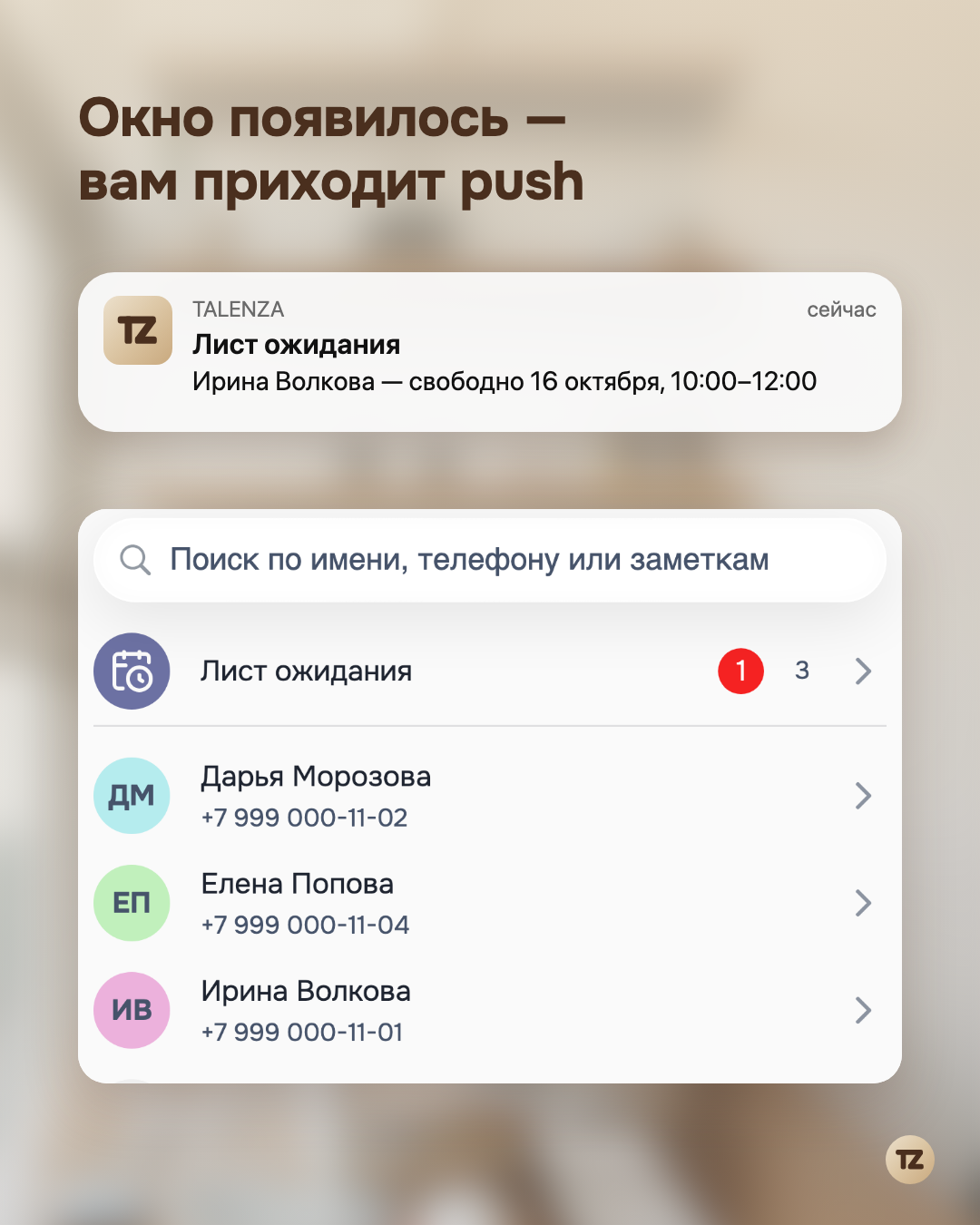
While there is time for someone, the “Waitlist” row and the “Clients” tab carry a red badge. Inside, requests with a slot found are gathered in the “Clients ready to book” section, and the rest wait below.
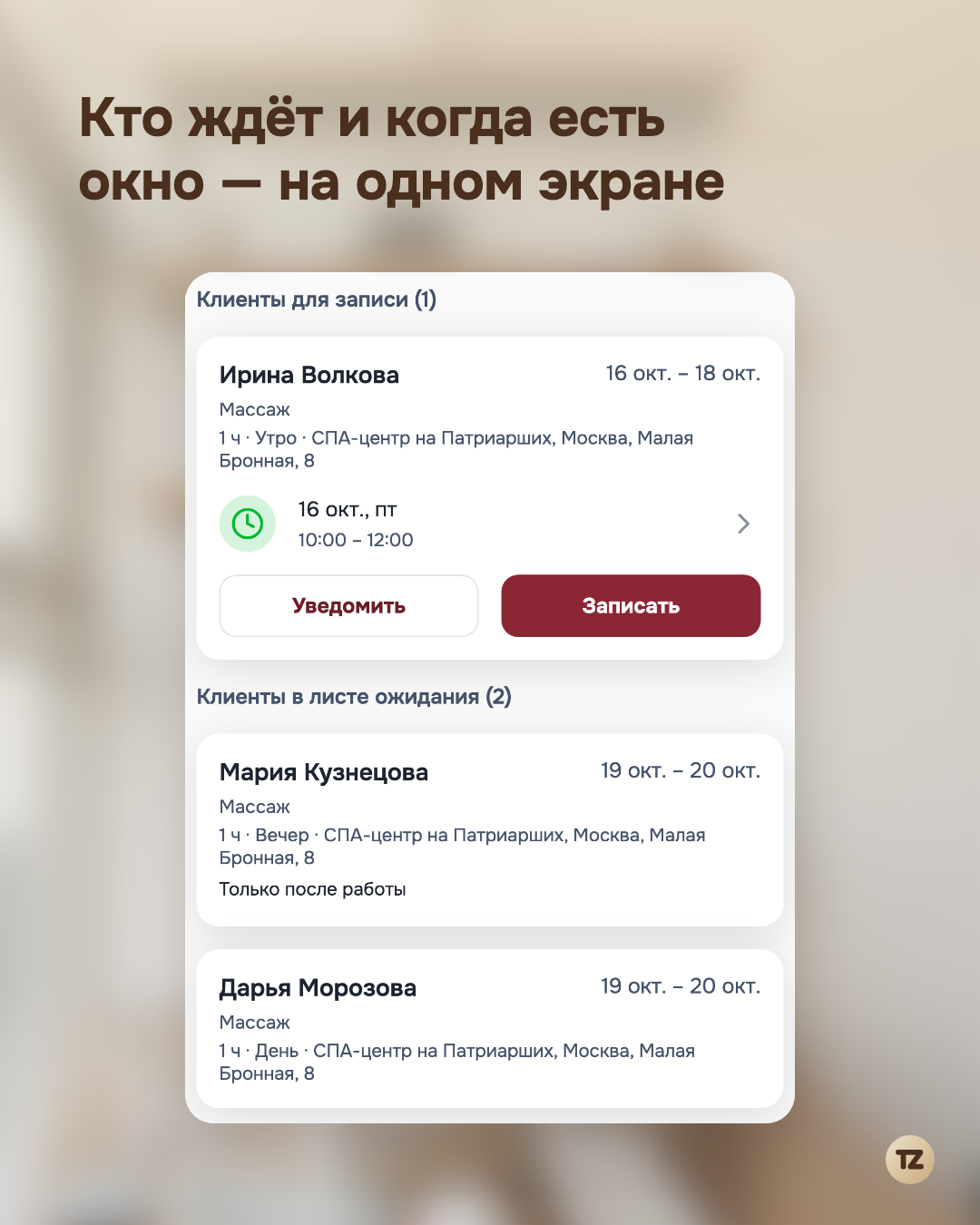
The app shows the whole free window, not just the start of a booking: you see that you are free from 10 to 12 and decide when it suits you to take the client. Bookings that are still waiting for your confirmation count as taken, so the same time is never offered to two people.
If a service is a little longer than the free window, the “Interval reduction” setting in “Settings” → “Waitlist” helps: the app will look for time 5–60 minutes shorter than the services. The same place lets you change the boundaries of morning, daytime, and evening, if your evening does not start at 15:00.
Telling the client is your call
Every request with a slot found has two buttons.
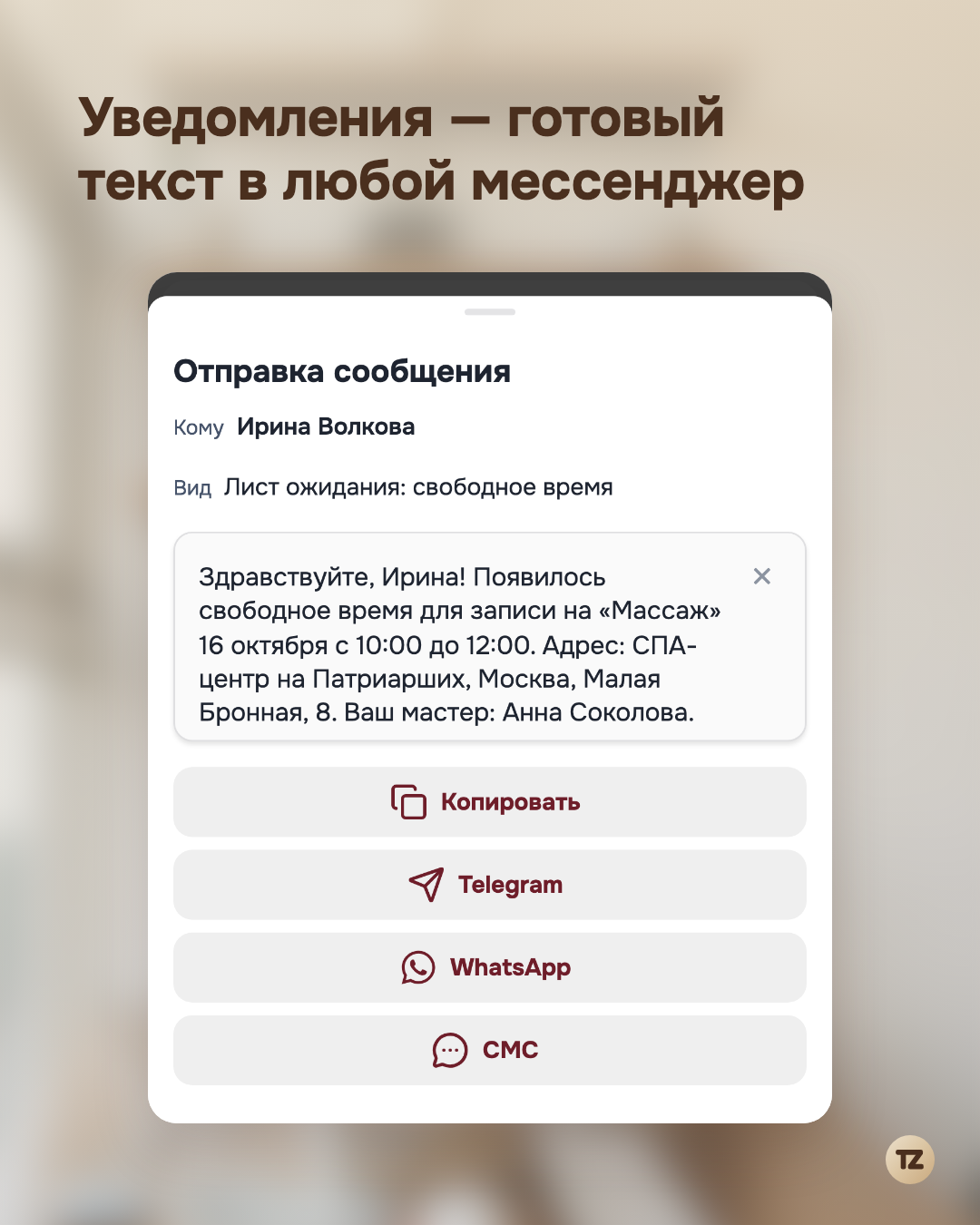
“Notify” opens a ready text: the client’s name, the service, date and time, the address. You can edit it. If the client is connected to our Telegram bot, the message goes through the bot, for free and instantly. If not, send it in Telegram, WhatsApp, or by text message from your own phone.
“Book” opens the schedule with the booking already filled in: the client, the services, and the start of the window that was found. Save it, and the request closes by itself. Closed and expired requests go to the archive, and you can always look at them.
We deliberately do not write to clients ourselves. A message about free time is better received from the pro than from a robot, and you decide who gets the offer first.
Summary
The waitlist remembers for you who asked for time and when. The app finds the slot and reminds you about it, and all you have to do is write to the client or book them right away. It is free and already in the app: “Clients” → “Waitlist”. And if you want to tell everyone about your free time at once, there are free slots.