
No more guessing whether the client will come: how reminders and booking confirmation work in Talenza
August 27, 2026
Screenshots show the Russian-language interface.
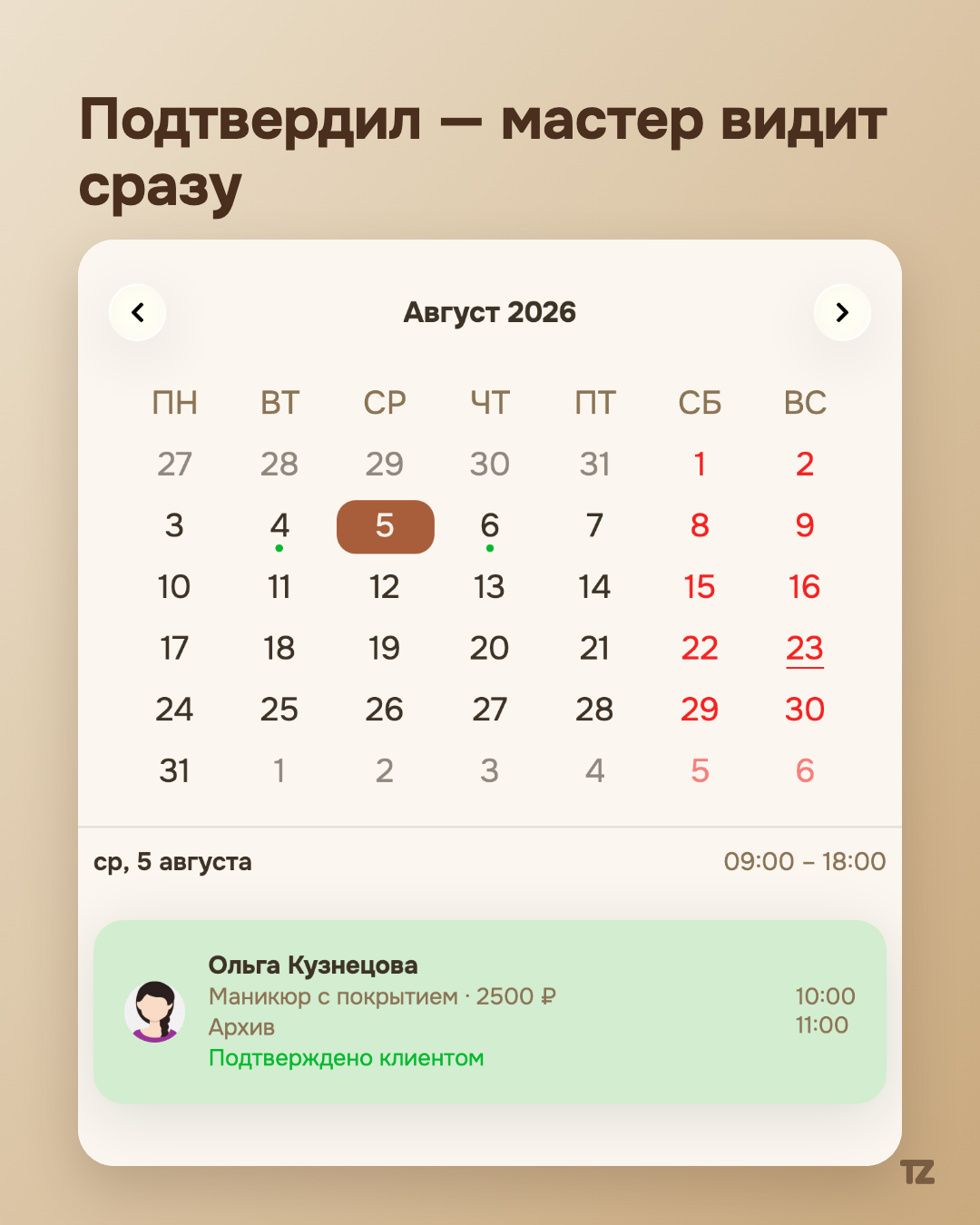
A solo pro can’t afford an empty gap in the schedule. A salon will survive one no-show client without consequences — for a one-person pro it’s a specific hour that can’t be sold to anyone else and can’t be brought back. That’s exactly why “will they come?” isn’t an abstract worry but a working question that comes up before every booking a day or two ahead.
The most obvious solution is a reminder. Write to the client the day before that they’re expected. But simply informing solves only half the problem: the pro still doesn’t know whether the message arrived, whether it was read, and whether the client is planning to come at all. A reminder without feedback is a letter into the void, which eases the pro’s worry exactly until the booking time arrives and the client is nowhere to be seen.
We designed this part of Talenza so that a reminder doesn’t end with sending but turns into a small dialog: the pro asks — the client answers — the pro sees the answer without leaving the day’s list.
A reminder isn’t just a message, it’s a question
In the card of a confirmed future booking, the pro has a “Remind the client and request confirmation” button. The wording isn’t accidental: it isn’t about “notifying,” it’s about “asking.” Tapping it opens a sheet with ready-made text — the pro sets up the notification template once in the notifications section, and the client’s name, date, time, service, and address are filled in by themselves — and a choice of channel: copy the text, send it via Telegram, WhatsApp, a regular SMS, or through the system “Share” menu. The pro decides where it’s more convenient for the client to see it — we don’t tie the channel to a single messenger.
That’s the manual path. There’s an automatic one too: in the notification settings you can turn on auto-sending and set how many minutes before the visit to send the reminder. Then everything happens without the pro’s involvement — Talenza itself checks every minute whose time has come and sends the message. The difference between the two modes isn’t only convenience but also money — more on that below.
In both cases, manual and automatic, the same thing happens: the fact and the method of sending the reminder are recorded on the booking. It’s this fact — not the text itself, but precisely the “reminder sent” mark — that opens the next step.
A button that doesn’t appear right away
The client gets a short link to their booking page. The link is protected: to open it, you need to enter the last four digits of your phone — enough that a random person who intercepted the link doesn’t see someone else’s personal data, but it doesn’t create extra friction for the client.
Until the reminder is sent, the page honestly tells the client: “as soon as the reminder arrives, a confirm button will appear here.” The button physically isn’t there — not because it’s hidden but because there’s nothing to confirm yet: the pro hasn’t asked.
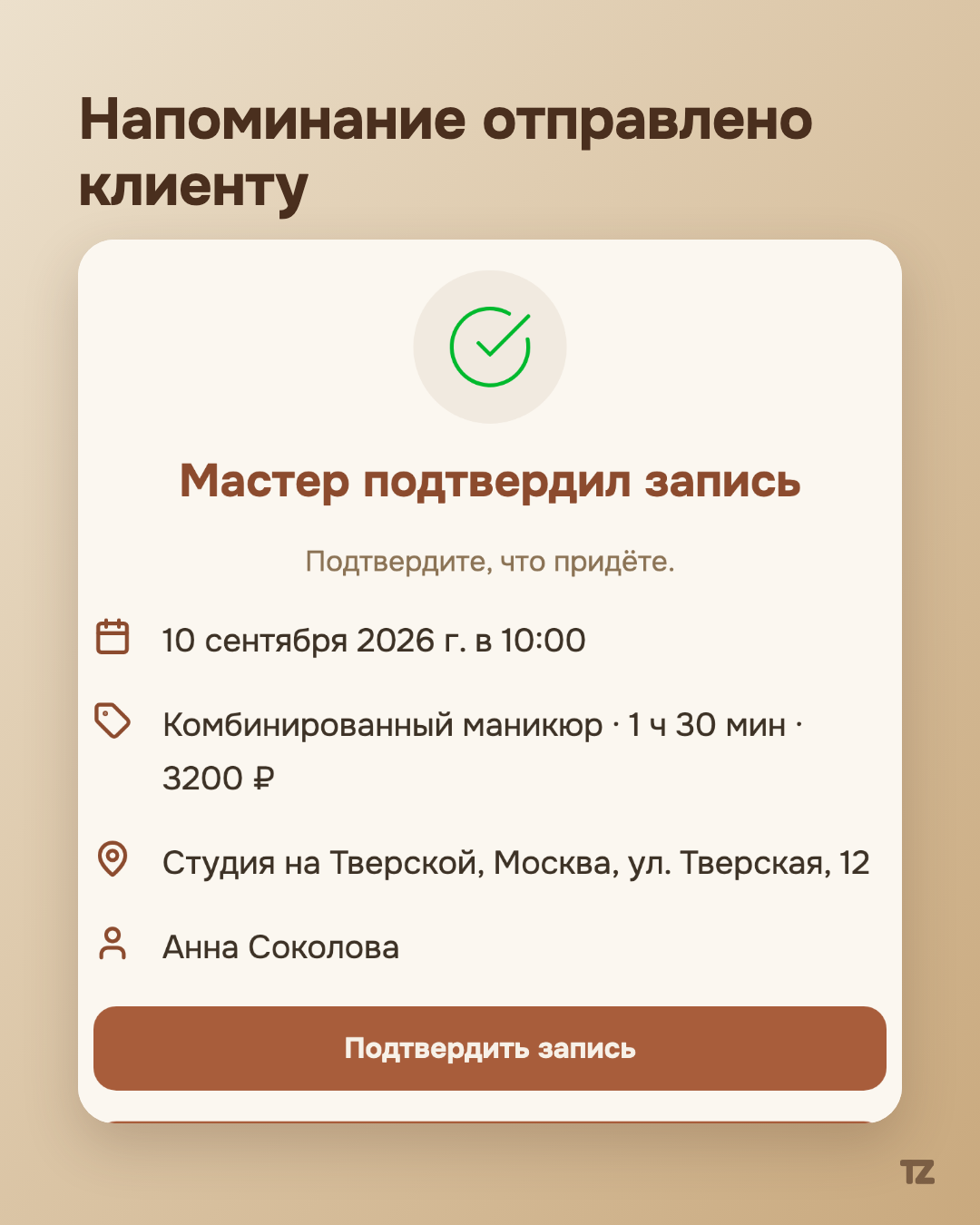
As soon as the reminder goes out, the page changes: “the pro has confirmed the booking, confirm that you’ll come” — and a “Confirm booking” button appears. One tap from the client — and their status is recorded. On the same page the client can not only confirm but also add the booking to their calendar, book again with the same pro, or cancel the visit if plans changed — that is, the confirmation page closes several neighboring scenarios at once, not just one.
If the reminder came in Telegram — confirmation right there
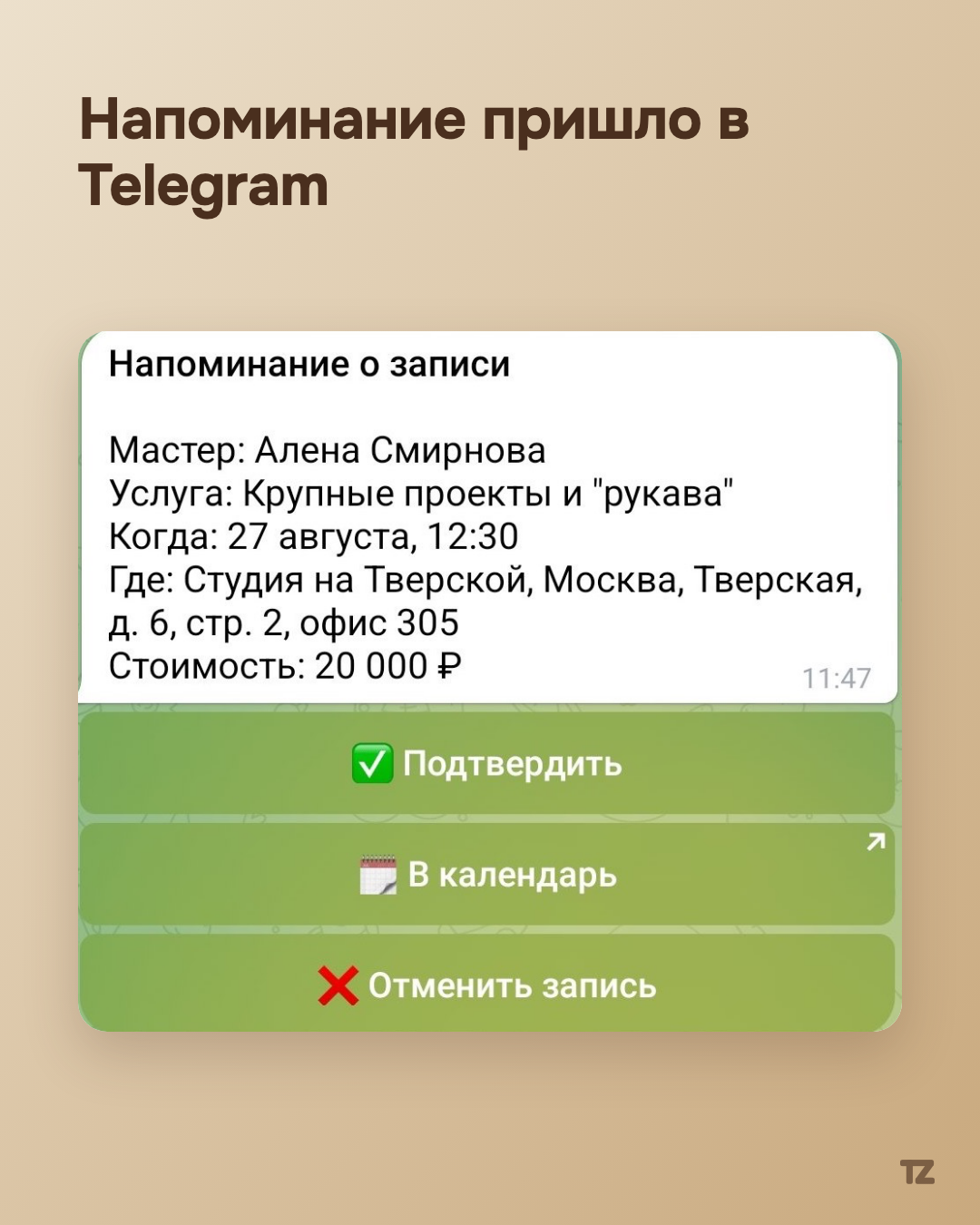
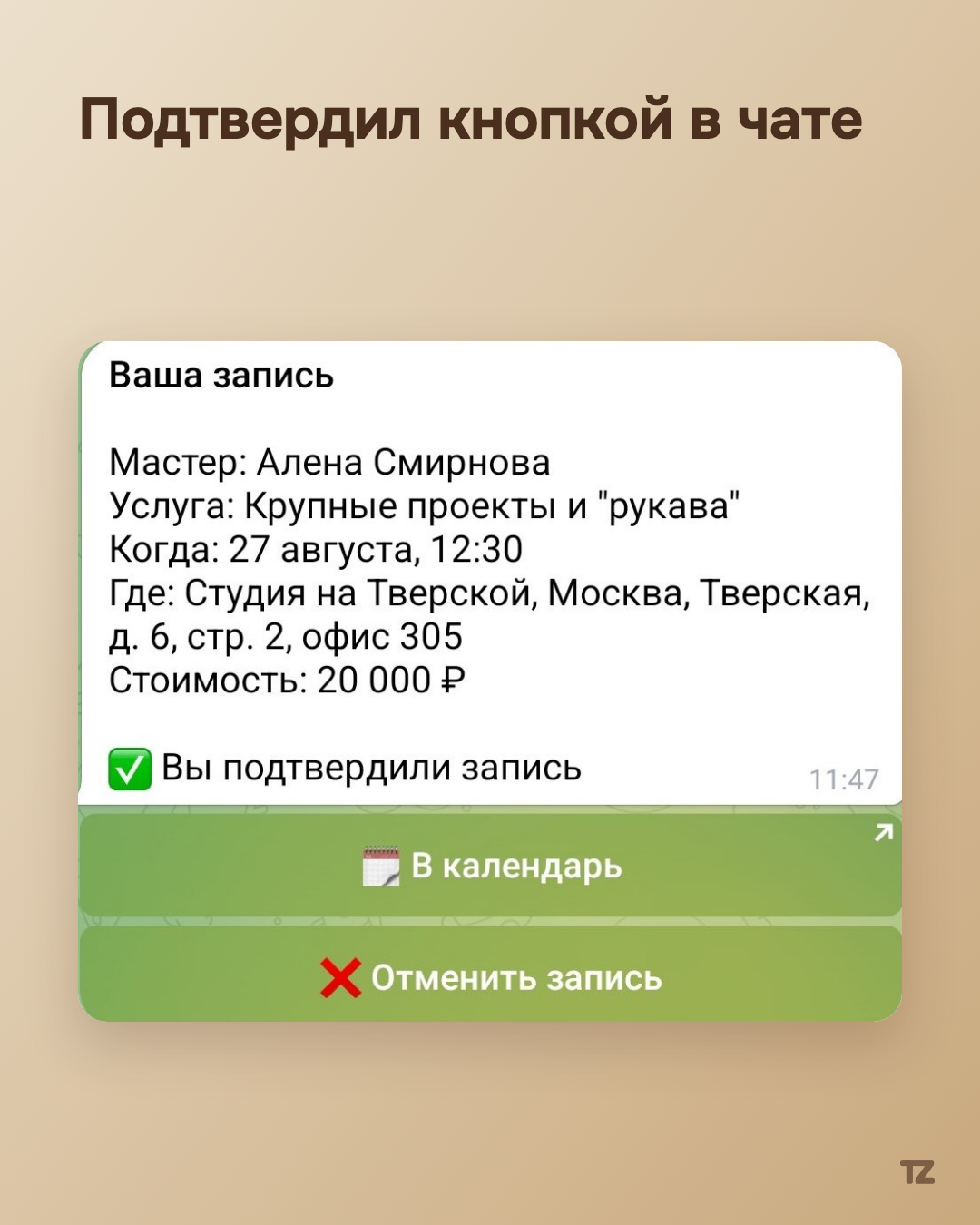
A separate case is a client who has the Talenza Telegram bot connected. Then the reminder arrives not as a link but as a booking card right in the chat with the bot: the pro, service, time, place, cost — and under the card a ”✅ Confirm” button. The client taps it without opening any page or leaving the chat — the message in Telegram updates in place, and the card gets the mark ”✅ You’ve confirmed the booking.”
The pro sees the answer without opening the booking
Here begins what really saves the pro time. The client’s confirmation doesn’t hide in some separate tab or notification that’s easy to miss. It goes right into the day’s list of bookings: next to the client’s name and service, a green label “Confirmed by client” appears. A pro scrolling through tomorrow’s schedule immediately sees who will definitely come and who hasn’t answered yet — without a single extra move.
If the client hasn’t confirmed yet, but the booking is already confirmed by the pro and the time hasn’t passed, the list honestly shows “Not confirmed by client” — also right in the row, not hiding the uncertainty. This is a deliberate decision: it’s better to see an alarming signal in advance and, say, call the client yourself than to learn about an unclear booking only at the moment the client doesn’t show up.
The client canceled themselves — that shouldn’t get lost either
There’s a nuance that’s easy to miss when designing such a mechanic: what if the client doesn’t confirm but cancels the booking themselves — through the same short link?
An ordinary cancellation (including by the pro) removes the booking from the day’s list — the time is considered free, and that’s right. But if it was the client who canceled, the row simply disappearing is a bad solution: the pro may not notice at all that the time has freed up and miss the chance to give the slot to someone else. So we don’t hide a booking canceled by the client: it stays in the day’s list, colored as awaiting attention and labeled with a separate yellow “Canceled by client” badge — instead of the usual confirmation label. At the same time this row no longer takes part in counting occupancy and booking overlaps: the time is in fact free, but the information about what happened isn’t lost. The pro decides when to remove such a booking from view for good.
This detail is a direct consequence of the same idea as the whole reminder mechanic: the system should not just record events but keep the pro informed about what is really happening with their schedule, without having to dig through history or ask the client again.
Who pays for reminders
The manual channel costs nothing: Talenza prepares the text, and the pro sends it through a messenger already installed on their phone. Here we held to a simple principle: a pro’s money isn’t an abstract number, it’s kopecks that must match the history of charges one to one. The balance isn’t stored as a single number that could accidentally drift from reality — it’s always recalculated from the operations journal: top-up, charge, refund. A charge happens only on the fact of actual sending: if the external SMS provider returned an error, the money is refunded automatically rather than hanging in an undefined state.
Separately it’s worth mentioning verification codes at sign-in and registration — those are messages too, but the pro doesn’t have to pay for them: only notifications to clients are charged, not the pro’s own service codes.
If the balance doesn’t have enough money to send — the auto-reminder doesn’t go out, and the pro gets a push notification offering to top up the account (no more than once a day, so as not to turn into spam until the balance is topped up). That way the system doesn’t spend money that isn’t there, but doesn’t stay silent about the problem either — the pro learns about the miss right away, not after the fact, when the client never received the reminder.
The manual mode in this sense isn’t a fallback for those who “haven’t set up the automation” but a deliberate alternative for those who prefer to control every message and not spend the SMS balance on it.
Not just the list of bookings
Confirmations and missed reminders are collected into a separate feed on the pro’s home screen — a single list by time of what happened with notifications to clients: what went out automatically, what was sent manually, what was at risk because of insufficient funds, and what didn’t go out at all. This feed updates live while the app is open — with no need to refresh the page by hand to find out whether the message arrived.
If something wasn’t sent automatically, the pro can resend it right there through the same channel or simply mark that they notified the client themselves in some other way — both options are unavailable only after the booking time has already arrived: there’s no point in catching up with a past reminder.
Summary
Individually, each block of this mechanic looks simple: a “remind” button, a “confirm” button, a green label in the list. But together they close the whole path of uncertainty — from “I sent a message and don’t know if it arrived” to “I can see in the schedule who will definitely come tomorrow morning” — without a single extra screen or a reminder to yourself to check it by hand.
This isn’t a separate feature but part of a broader idea: a pro shouldn’t lose sight of what’s happening with their clients, whether it’s a booking confirmation, a cancellation, a note about a client, or a notification that ran out of funds. Each next step of this system — the schedule, the client card, the notification feed — is built so that information stays in view rather than getting lost somewhere between screens.