
How to get rid of gaps between bookings: clients back to back
October 1, 2026 · updated October 29, 2026
Screenshots show the Russian-language interface.

A familiar picture: one client booked for 9:00, another for 5:00 PM, and between them eight hours in which you can’t seat anyone. If booking is open for all your working time, the client picks what’s convenient for them, not for you. The pro ends up with a schedule full of holes and loses hours that can’t be sold. What such gaps cost you over a month is worked out in the article on a solo pro’s income.
This is one of the most common complaints pros have about booking apps: they want clients to be offered only the slots next to already taken time. Talenza has such a setting.
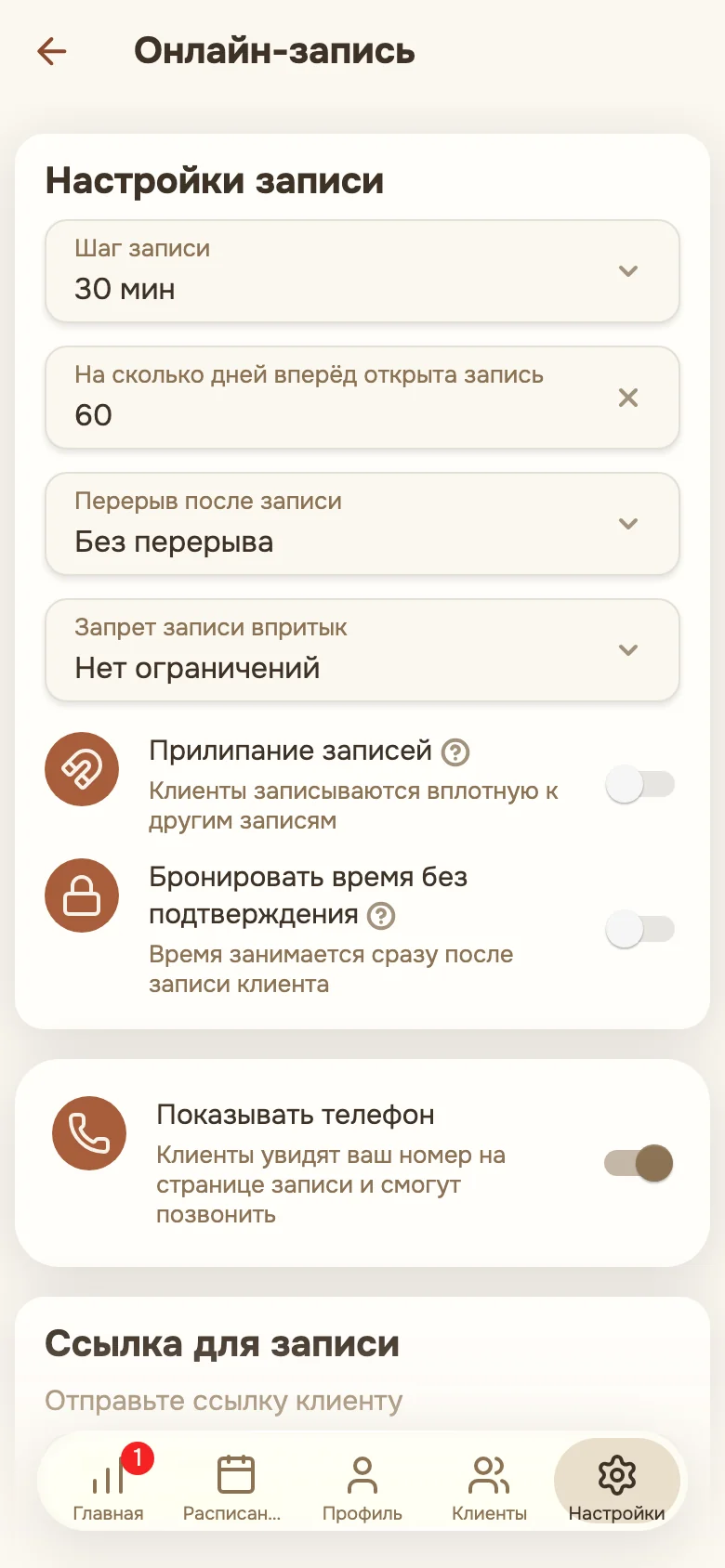
”Sticky bookings”
In the online booking settings there’s a “Sticky bookings” switch. It’s off by default. When it’s on, the day is assembled like this:
- The day’s first client chooses any free time in your schedule.
- The next ones are offered only the time right up against a taken slot: right after an existing booking and right before it.
- After that, the day grows around those bookings.
An example. You have a booking at 12:00 an hour long, and a break after the booking of 15 minutes. The next client will see 1:15 PM and 10:45 AM (an hour-long booking plus the break has to end by 12:00). The times 9:00, 3:00 PM, and 5:00 PM won’t be shown to them, so there won’t be holes.
What’s taken into account
- The break after a booking. Free time is offered after the break you set up.
- Blocks. Your time blocks also count as taken intervals.
- Place of work. The calculation is done for each place separately: a booking at one address doesn’t affect the schedule of another.
- Confirmed bookings. Confirmed bookings serve as the reference. If holding time without confirmation is turned on, pending ones are counted too.
What happens if there’s no free time nearby
If no free slots are left right up against bookings, Talenza doesn’t leave the client without a choice: all of the day’s free time opens up, as for the first client. You don’t lose a booking because the neighboring slots are taken.
The pro’s cabinet isn’t limited by this mode: you book a client for any time yourself.
What the mode doesn’t do
It doesn’t choose the day’s first time. If the first client picked 5:00 PM, the day will be assembled around 5:00 PM. To avoid this, narrow your working hours or put a block on the inconvenient time.
It also doesn’t fill gaps that have already formed. For those there’s Free slots: choose a period and send clients the free time in a single message.
Step-by-step instructions are in the knowledge base: How to remove big gaps between bookings. If clients sometimes don’t show up and the gaps form because of that, take a look at the ready-made messages for confirming a booking.
Gaps also appear because of last-minute reschedules and cancellations. How to agree things with clients in advance is in “Booking rules for a solo pro: reschedules, cancellations and prepayment”.
Frequently asked questions
How do I make sure there are no big gaps between bookings? In online booking, turn on the mode in which clients are offered only the time next to an already taken slot. In Talenza it’s called “Sticky bookings” and is turned on in the online booking settings.
How do I offer clients only the time next to other bookings? After the day’s first confirmed booking, clients see only the time right before it and right after it. If there’s no free time nearby, the whole day is shown.
What should I do about gaps that have already formed? Send clients the free time: “Free slots” in Talenza collects it by day into a card or a text for a messenger.